Main windowUnity logsScreenshots and recordingsApplications
What it does
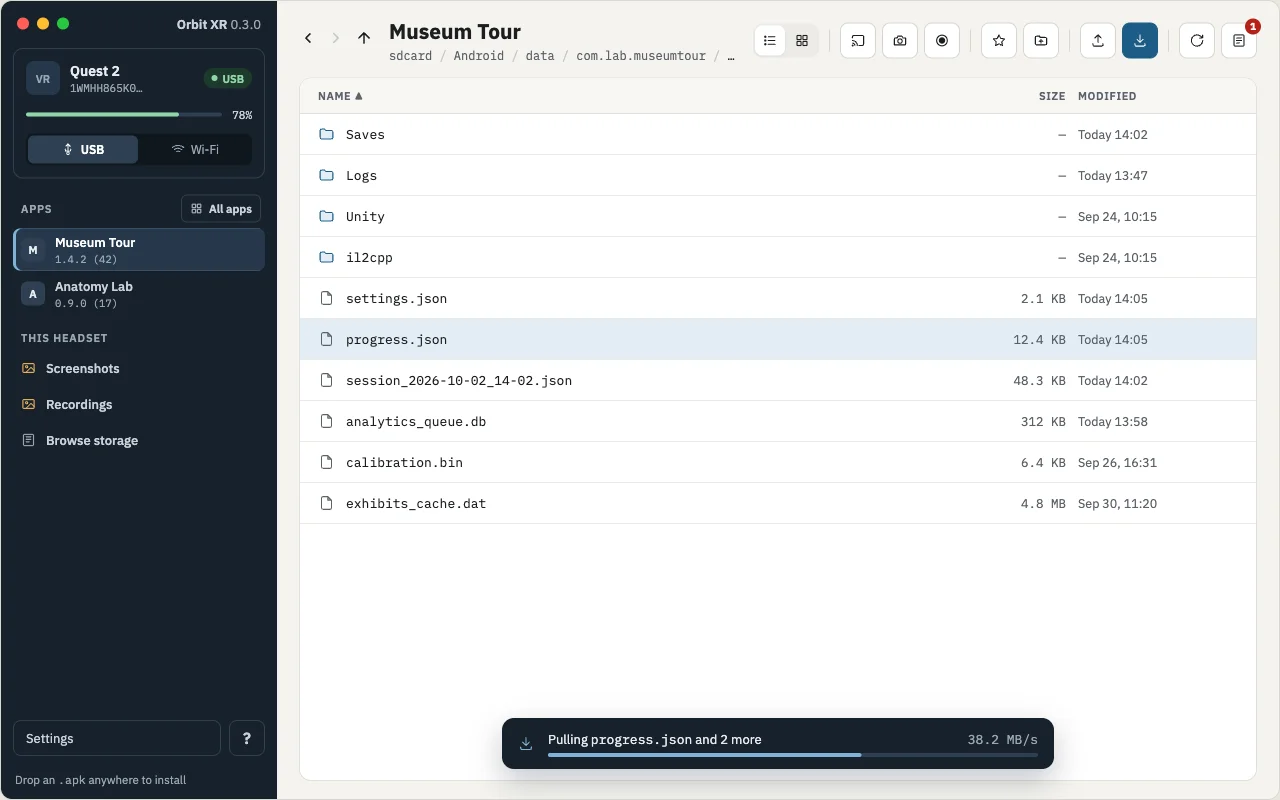
Files — browse the headset, pull files to your Mac, push by drag and drop, preview with Quick Look.
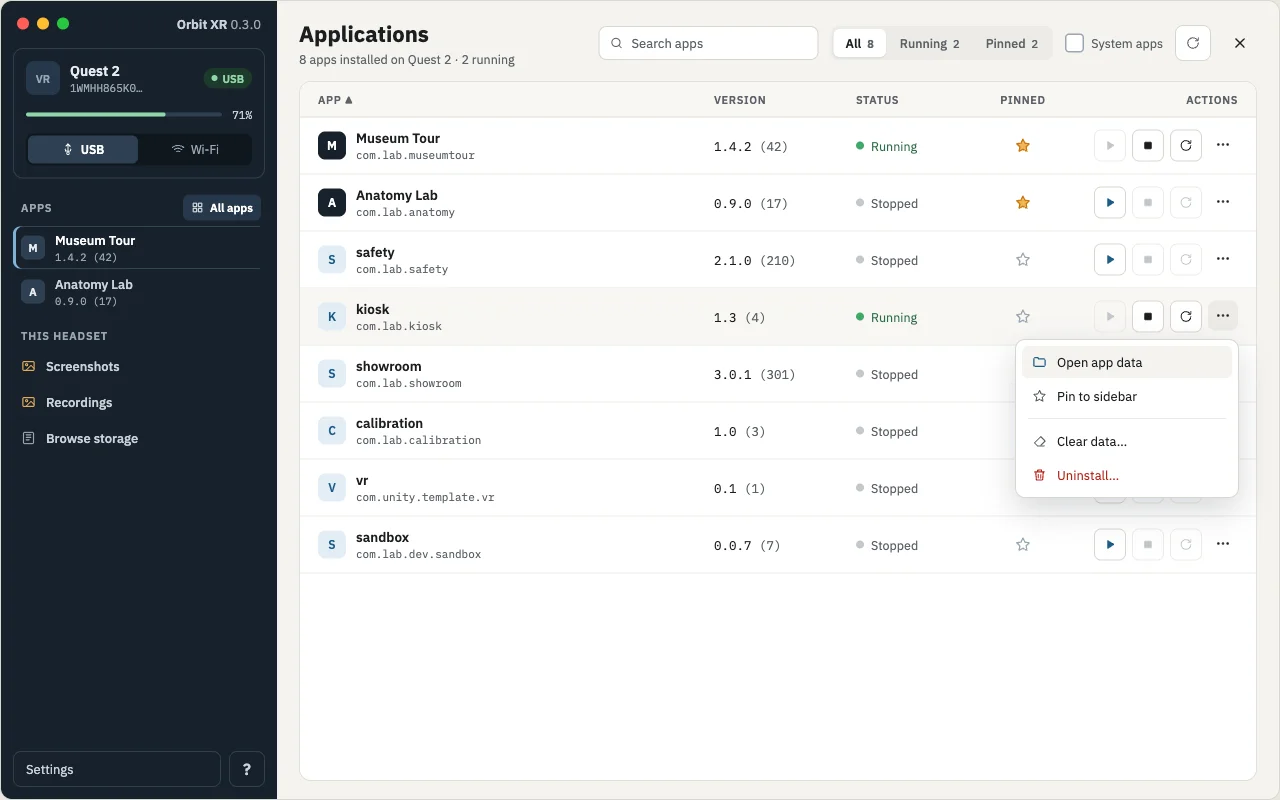
Apps and favorites — pin your apps, see installed versions, jump to app data in one click, save any folder as a favorite.
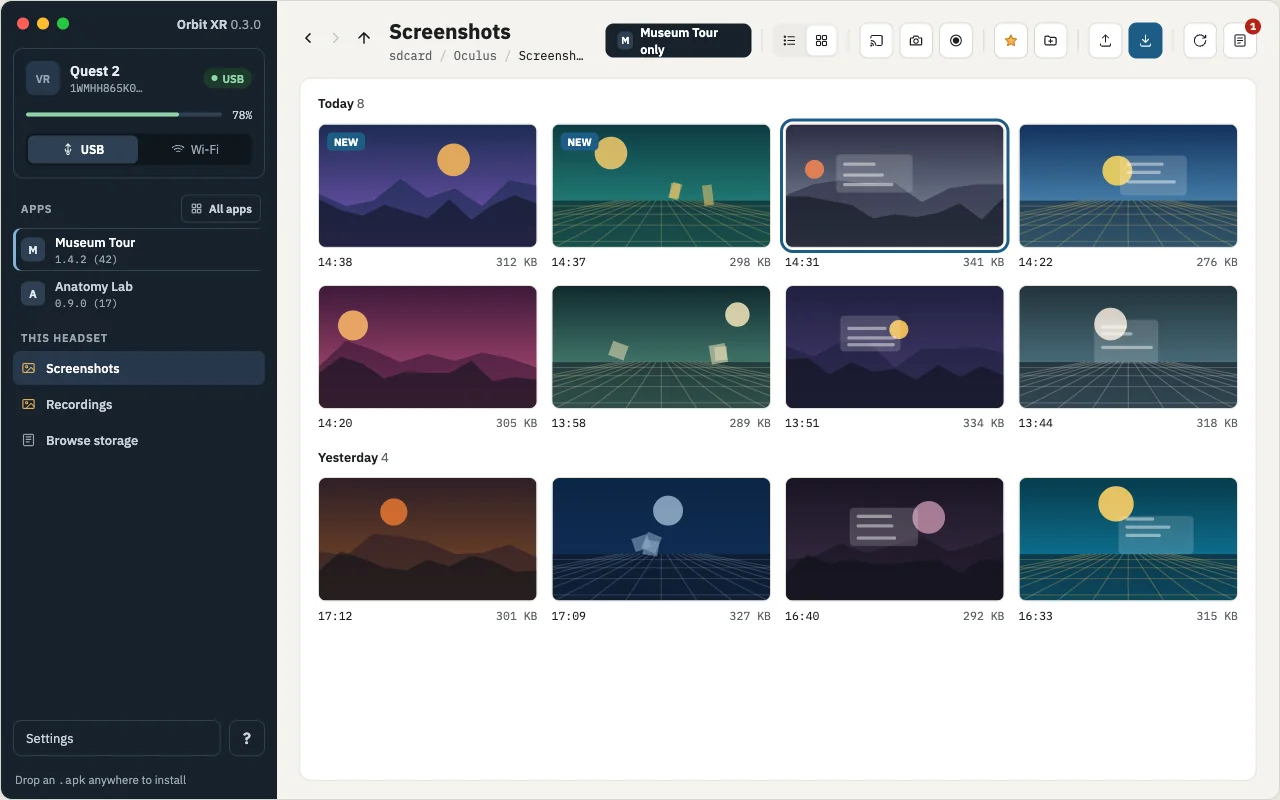
Screenshots and recordings — take them from your Mac, browse them as a grid with thumbnails, filter by app.
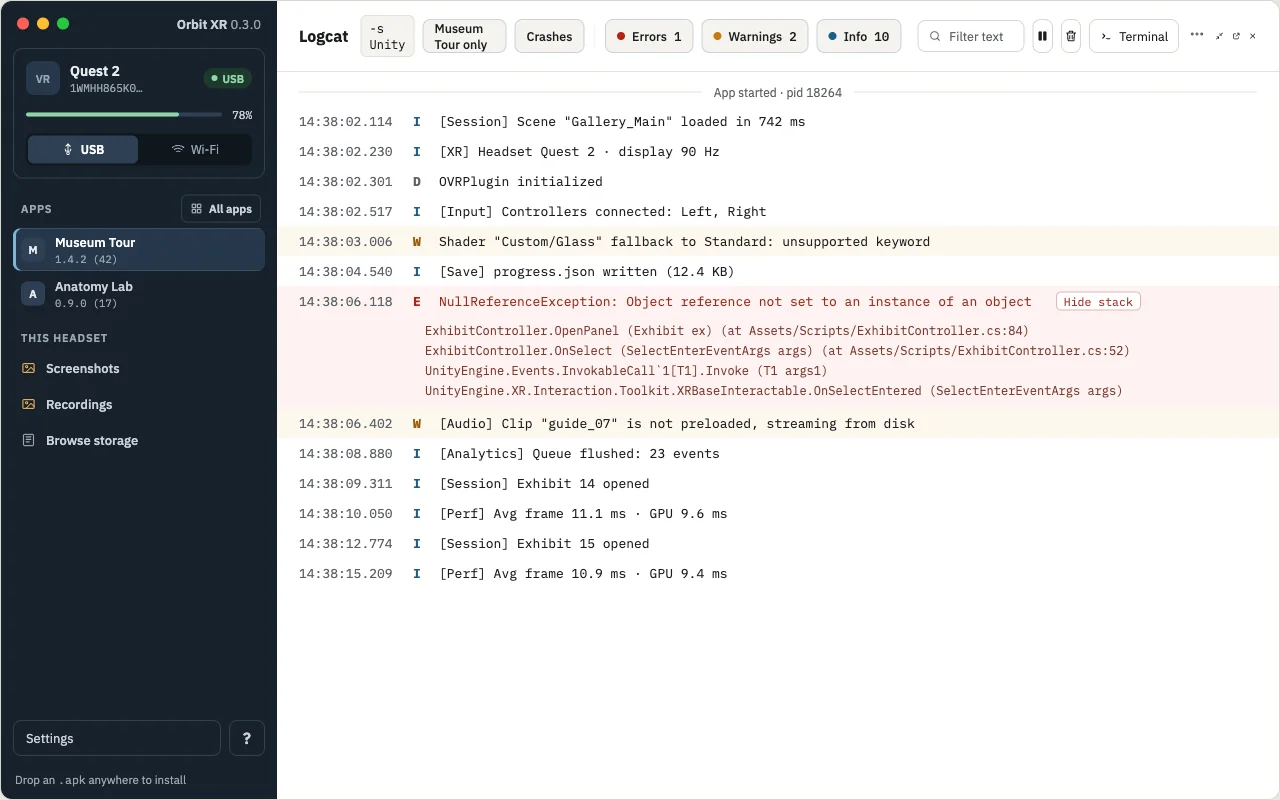
Unity logs — filters, collapsible stack traces, crashes, a separate log window.
Screen casting — a live one-eye view in a separate window.
APK install — drag an APK into the window, with version check and clear error messages.
Wi-Fi — connect once over USB, then switch to Wi-Fi and unplug the cable.
Supported devices
Device
Status
PICO 4 Ultra Enterprise
Tested
Meta Quest 2
Tested
Meta Quest 3
Not tested yet
Other Android devices
Basic support
Requirements
macOS 13 Ventura or newer, Apple Silicon Mac (M1 or newer)
adb from Android Platform Tools: brew install --cask android-platform-tools
Developer mode enabled on the headset
Install
Download the .dmg and drag Orbit XR to Applications.
The app is not signed by Apple yet, so macOS blocks it on first launch: open it once, then go to System Settings → Privacy & Security and click Open Anyway.
Connect the headset with a USB-C data cable, put it on and allow USB debugging.
Windows support. Orbit XR now runs on Windows 10 and 11 (x64): installer, Explorer integration, Windows keyboard shortcuts, a built-in preview window instead of Quick Look, and safe file names when pulling files to a PC.
Applications page. All apps on the headset in one table: version, running status, Launch, Force stop, Restart, Clear data, Uninstall, and pinning to the sidebar. Opens with All apps in the sidebar or ⇧⌘A / Ctrl+Shift+A.
Clearer connection problems. If adb is missing, the main screen now says so, with the install command and a link to Help. New device states: Not authorized (allow USB debugging inside the headset) and Offline.
Settings, Help and Applications close with the × button or Esc and return you to where you were.
Clicking a pinned app opens its data folder; system apps are protected from Force stop, Restart and Clear data.
Casting on PICO 4 Ultra Enterprise uses the 16:9 one-eye view again.
Hulka Labs branding in About, the Help menu (Orbit XR Website) and the app's file properties.
Wi-Fi connection. Connect over USB, switch to Wi-Fi with one click and unplug the cable. USB | Wi-Fi switch in the device card; automatic reconnect after short drops.
Meta Quest 2 support. Model detection, screenshot and screen recording from Orbit XR, casting with a 16:9 one-eye view.
Casting in the Quest home environment now works (updated casting server).
Apps: clicking an app opens its data folder; the separate “App data” favorite is gone.
Recording: the button waits for the headset to confirm before starting the timer; clear message if the headset is asleep.
Help: new “Supported devices” section; note about Meta cloud sync of screenshots and recordings.
Settings page layout fixed (full width, two columns on wide windows).
0.1.0
First version (macOS, Apple Silicon).
Device card with battery level; one headset over USB.
File manager: browse, pull to Mac, push by drag and drop, rename, delete, Quick Look.
Pinned apps with version numbers; favorites per headset with aliases and {package} paths.
Media grid for screenshots and recordings with thumbnails and “ only” filter.
Unity logs: filters, stack traces, crashes, separate window.
PICO 4 Ultra Enterprise: screenshot and recording from Orbit XR, global shortcuts.
Screen casting in a separate window.
APK installation by drag and drop, with version check and clear errors.
Help with keyboard shortcuts, troubleshooting and legal information.